
NAS and shared file storage for small offices
A network storage box can be a fast, sensible home for large files, or a single point of failure sitting on a shelf. We help you decide whether a NAS or SharePoint suits your files, then set it up securely, back it up offsite and keep it updated.
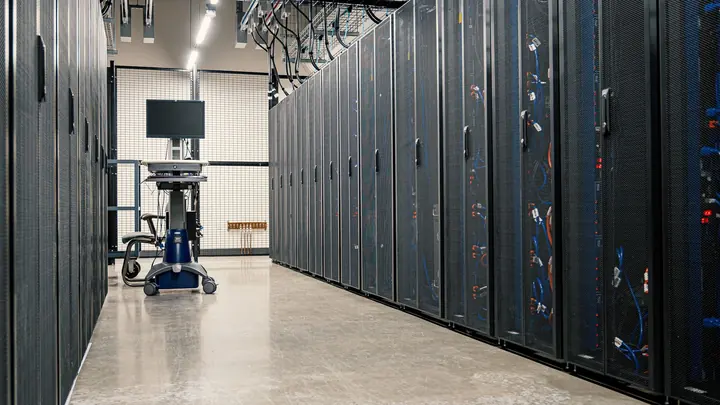
NAS & shared file storage for small and medium businesses
A NAS is a small storage device that sits on your office network and holds shared folders, usually with two or more disks so one can fail without losing data. Brands such as Synology and QNAP make them affordable and easy to start with, which is why so many small offices have one. The trouble is that many were set up once and then left alone: no updates, the admin password still on a sticky note and no copy of the data anywhere else.
A NAS still makes sense for some work. Architects, video producers, photographers and engineers often deal with files too large to sync comfortably through the cloud, and a NAS on the local network opens them quickly. For everyday documents, spreadsheets and email attachments, SharePoint and Teams are often better: staff can reach files from home without a VPN, version history is built in and there is no box to replace. Many offices end up with both, each doing what it suits.
Whatever you keep on a NAS needs protecting properly. We turn off the internet-facing features that attackers look for, set up proper user accounts instead of one shared login, keep the firmware updated and watch the disks for early signs of failure. Most importantly, the NAS itself is backed up to a separate offsite location with different credentials, because disk redundancy protects against a failed drive, not against ransomware, theft, fire or someone deleting the wrong folder.
What's included
Storage advice
An honest comparison of NAS, SharePoint or a mix for your files, based on file sizes, how people work and where they work from.
NAS setup
A new device chosen and sized for your data with room to grow, disks configured for redundancy and shared folders laid out with you.
Access and permissions
Individual user accounts and folder permissions in place of a shared password, linked to your company sign-ins where the device supports it.
Security hardening
Default accounts disabled, remote access features locked down, firmware updated and admin access limited to the people who need it.
Offsite backup
The NAS backed up to a separate cloud location with versioning and separate credentials, so ransomware on the network cannot reach the copies.
Disk and health monitoring
Disk health, capacity and backup results monitored, with failing disks replaced before a second failure puts data at risk.
Remote access done safely
Access from home through your VPN or a secure sync option, never by opening the NAS directly to the internet.
Moving to SharePoint
Where SharePoint suits better, folders moved across with permissions rebuilt and the NAS kept for large files or retired.
Who is NAS and shared file storage for?
Talk to us about file storage if:
- Your NAS has not had a firmware update in a year or more
- Everyone signs in to the shared drive with the same password
- You work with large drawings, photos or video files
- Your NAS is the only copy of the company's files
- Staff struggle to reach shared files when working from home
Not sure where to start?
Our free IT health check looks at your devices, accounts, backups, security and network. You get a short written report with what is working, what is at risk and a price to fix it. No obligation.
Book the health checkNAS & shared file storage questions
Is a NAS a backup?
Not on its own. Redundant disks protect against one drive failing, but not against ransomware, theft, fire or accidental deletion. A NAS holding important files needs its own copy somewhere else, with different credentials.
Should we use a NAS or SharePoint?
SharePoint suits everyday documents, especially when people work remotely. A NAS suits very large files that are slow to sync, such as CAD drawings and video. Many offices use both, and we help you decide which folders belong where.
Which NAS brand do you recommend?
We are not tied to a brand. Synology and QNAP both make capable small business devices, and we choose based on the features, capacity and support you need, then quote it in writing first.
Can staff open NAS files from home?
Yes, safely. We use your VPN or a secure sync option rather than exposing the NAS to the internet, which is a common way NAS devices get attacked.
How do we know when a disk is failing?
The NAS reports disk health and we monitor it. Warnings are followed up and failing disks replaced before a second failure puts the data at risk.
Our NAS is old. Can you move the data to a new one?
Yes. We set up the new device, copy the data with permissions intact, test it and switch staff over, then securely wipe the old disks.
Is NAS support included in the plans?
Monitoring and updates for a NAS are covered under the Managed and Complete plans. A new device or a move to SharePoint is project work, quoted in writing first.
Other ways we help

Managed IT
One monthly price per person for support, security, updates and backups. Your outsourced IT team.
Managed IT
IT support
Remote and onsite help when you need it, billed by the hour. No plan, no contract.
IT support
Cyber security
Practical protection against scams, ransomware and account takeover, set up and kept current.
Cyber security